Case study · AI · File management · Web & mobile
Bringing AI insights into everyday file management
Designing how AI-generated insights are displayed, processed and searched in Hubgets File Manager, a cloud platform where teams keep their call recordings, videos, product images and contracts.
Overview
A file manager that understands its files
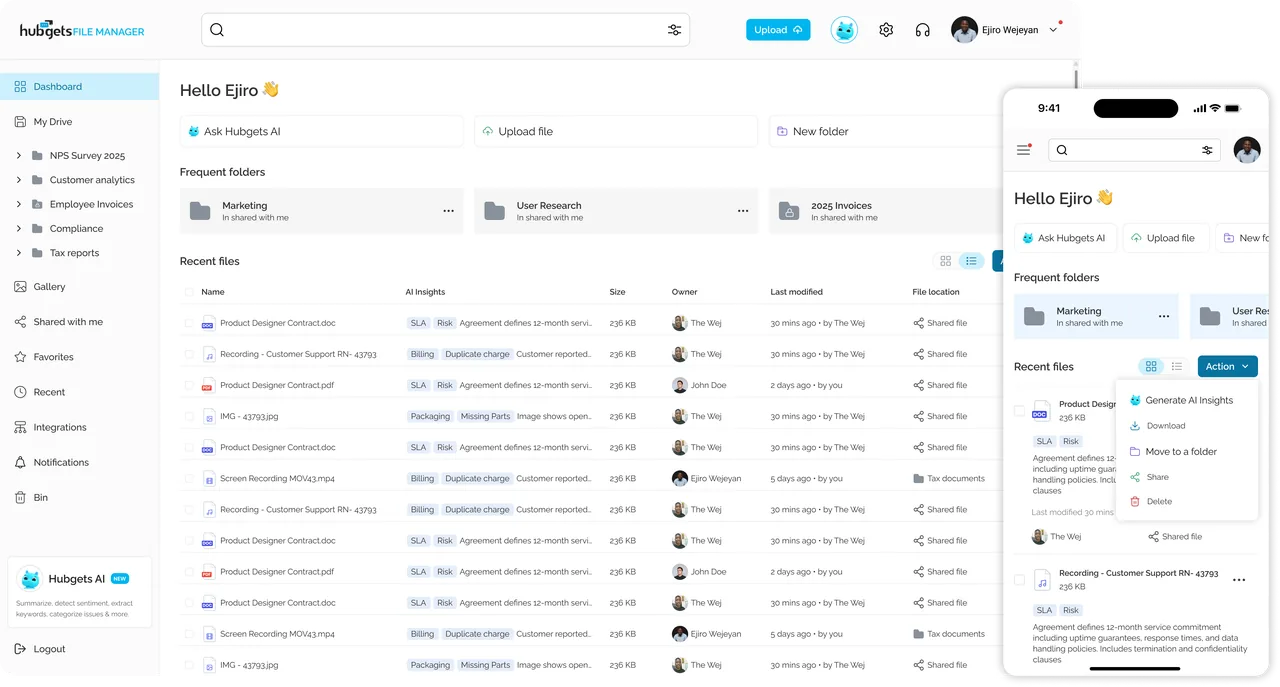
Hubgets File Manager lets teams upload, organise, search and view their files, added manually or synced from CRMs, WhatsApp and email.
Once a file arrives, an AI module processes it in the background and extracts structured insights: a summary, a business classification, keywords, sentiment, intent and an issue category.
My focus was how those insights appear, how they arrive, and how people work with them, across desktop and mobile.
The challenge
More AI output is not the same as more useful output
Every file can carry up to six kinds of insight, but not every insight makes sense for every file. Sentiment means little for a contract or a product photo. Some files return two insights; others return many.
On top of that, insights arrive asynchronously and at different speeds, and semantic search is slower and less predictable than the keyword search people are used to.
The goal was to make AI insights feel like part of the file, not a layer of noise on top of it.
- Overload
Too many insight types per file compete for attention and break consistent layouts.
- Clarity
Labels like “intent: escalation” or “sentiment: neutral” can be vague without context.
- Trust
Insights vary in accuracy. One wrong result can undermine confidence in all of them.
- Latency
Processing and semantic search take time, and the interface has to account for it.
The experience
From upload to insight to answer
My design approach
Three principles for AI that earns its place
01Show what’s relevant
Prioritise insights by file type and content. Lead with what helps someone decide, and reveal the rest on demand.
02Make progress visible
AI works asynchronously and in stages. The interface should say what is happening, for the batch, each file and each insight.
03Keep people in control
Users can verify, correct, regenerate and refine what the AI produces, so its output never becomes a black box.
Displaying AI insights
Glanceable in the list, complete in the details
Insights work at two levels of attention: scanning many files, and understanding one.
In the file list, an AI Insights column gives a scannable overview: the classification and issue category as tags, followed by a one-line summary. Users can triage a folder without opening a single file.
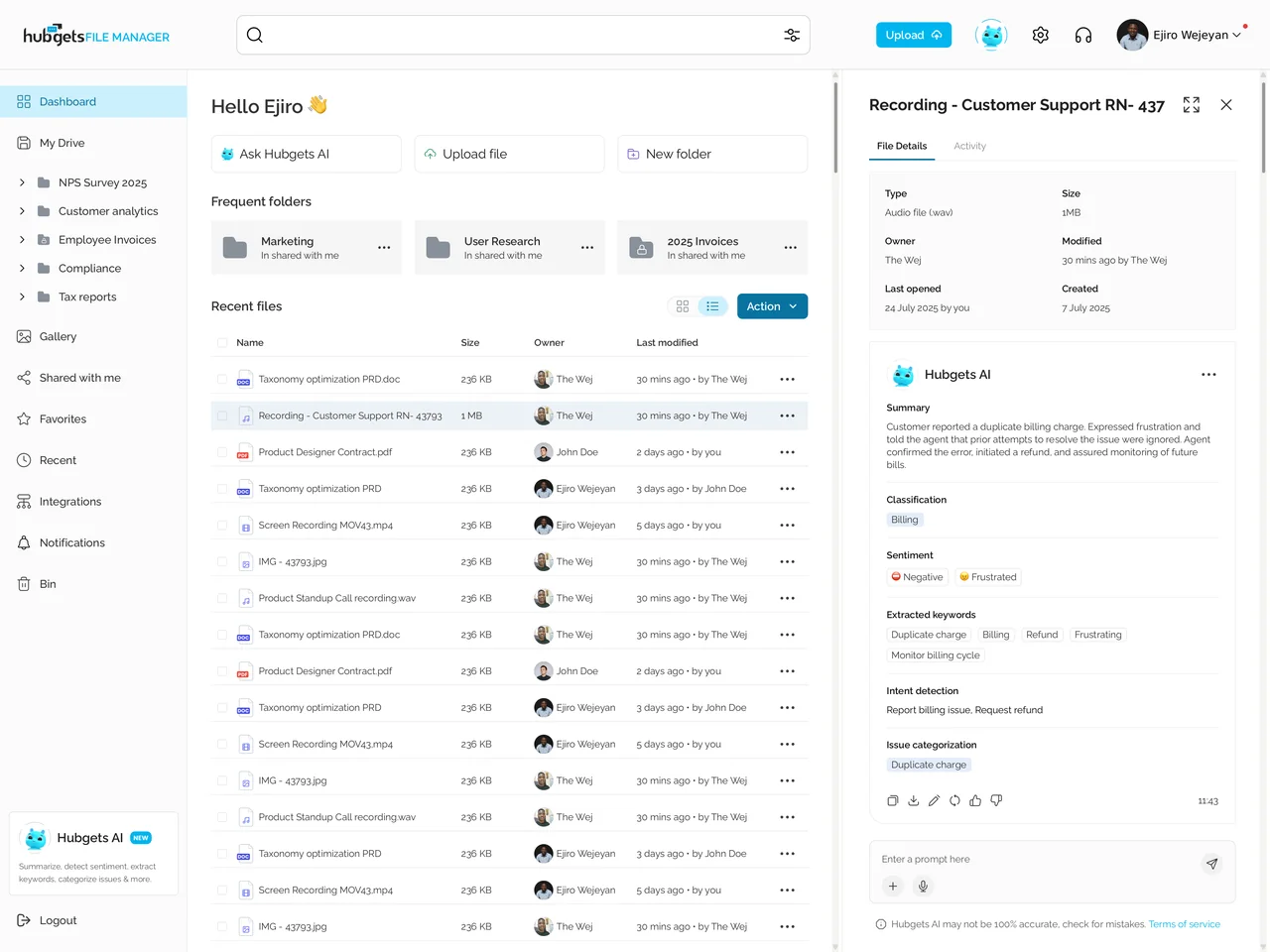
Opening a file shows its metadata above a Hubgets AI card. Insights are grouped under plain-language headings, and only the groups that make sense for the file appear: a support call shows sentiment and intent, a contract or a product photo does not.
Every result can be copied, downloaded, edited, regenerated or rated, and a prompt field lets users ask follow-up questions about the file.
- Only groups relevant to the file are shown
- Plain labels instead of model terminology
- Rate, edit or regenerate any result
- Ask the AI about the file in context
- A visible note that AI output can be wrong
- Generate insights on demand from any file’s menu
AI processing and feedback
Showing progress at the pace the AI works
Twenty files uploaded at once. Five are large and slow. Keywords land in seconds; a summary can take ten or more.
AI processing is asynchronous and staged, so “loading” is never one state. I designed feedback at three levels, the batch, the file and the individual insight, so people always know what is ready, what is still working, and what needs them.
- WAVCustomer support call.wavQueuedKeywordsRefundBillingDuplicate chargeClassificationBillingSummary
Customer reported a duplicate charge; refund issued.
- PDFMaster service agreement.pdfQueuedLarge file, this can take a few minutes
- DOCTaxonomy PRD.docQueuedSummary failed: server timed out. Retry
- JPGIMG-43793.jpgQueued
+ 16 more files
- 1AI is a choice at upload
Upload only, or upload and generate insights. Processing is never a hidden cost, and it can still be run later from any file.
- 2The batch
One header counts files uploaded and insights ready separately, because they finish at different times.
- 3The file
Every file names its current stage, so slow ones never look stuck. Large files say upfront that they will take longer.
- 4The insight
Each insight appears the moment it lands. Pending ones hold their place as skeletons, so nothing jumps.
- 5When something fails
A failure stays scoped to one insight, with a reason and a retry. Everything else remains usable.
Smart search
Search that understands what people mean
Semantic search lets users search the way they think: “Angry calls from March” or “Complaints about missing chargers in June”.
It is also slower and less predictable than keyword search. I designed the flow around those technical limits so they would feel smaller to the person searching.
- Complaints about delayed orders
- Complaints about missing chargers
- Complaints received in the last 30 days
- Complaints that are still unresolved
- WAVRecording Rec234.wavCustomer reported a missing charger; escalated to logistics.Frustrated
- DOCDefective products list.docReturned orders with missing chargers from the June batch.Missing part
- PDFCheckout survey.pdfCharger not included; customer asks for a replacement.Negative
Searching for more results
Did this match what you were looking for?
01Latency
The limitSemantic queries take noticeably longer to process than keyword search.
Design responseAn explanatory loading state sets expectations, then results stream in as they are found, with “Searching for more results” below them.
02Query parsing
The limitA query like “Angry calls from March” is turned into filters, and that parsing can go wrong.
Design responseThe interpreted query is shown as filter chips joined by AND and OR, which users can remove or edit.
03Query understanding
The limitComplex or ambiguous queries, such as “Complaints about missing chargers in June”, can be misread.
Design responseA “Did this match what you were looking for?” check offers AI-suggested rephrasings when results miss.
04Real-time suggestions
The limitTruly semantic autocomplete is too slow to run on every keystroke.
Design responseFast completions extend what the user has typed, keeping typing instant while the semantic work happens on submit.
The most useful AI in a file manager is not the loudest.
It is the one that shows what matters, says what it is doing, and is easy to correct.
Other case studies
More work